How to move your Im Alive data to a new Android phone
A step-by-step guide with six real Android screenshots: update the old phone, create a transfer code, restore on the new phone and re-enable reminders.
Im Alive 1.0.21 · Android guide · 13 October 2026
How to move your Im Alive data to a new Android phone
Changing phones does not mean starting your safety routine again. In Im Alive 1.0.21, you can create a transfer code on your old phone and enter it on your new phone to reconnect to your existing account.
Before you start: both phones need Im Alive 1.0.21 or later and an internet connection. Keep the old phone and its app available until you have checked the restored data on the new phone. If Google Play does not show the update yet, wait for the rollout—do not uninstall the old app or clear its data.
What stays with your account?
Your profile, check-in plans and timing settings, emergency contacts, history, care information, saved last-letter content, and the subscription record linked to your account stay with that account. This is account restoration, not a merge of two separate accounts.
Phone-specific permissions do not transfer. You must enable notifications and review reminder and battery settings on the new phone. Review your preferred language and display settings too.
1. Update the app on your old phone
Open the Im Alive listing in Google Play and choose Update. Update the existing installation; do not uninstall it. Open the app and allow recent changes to sync while online.
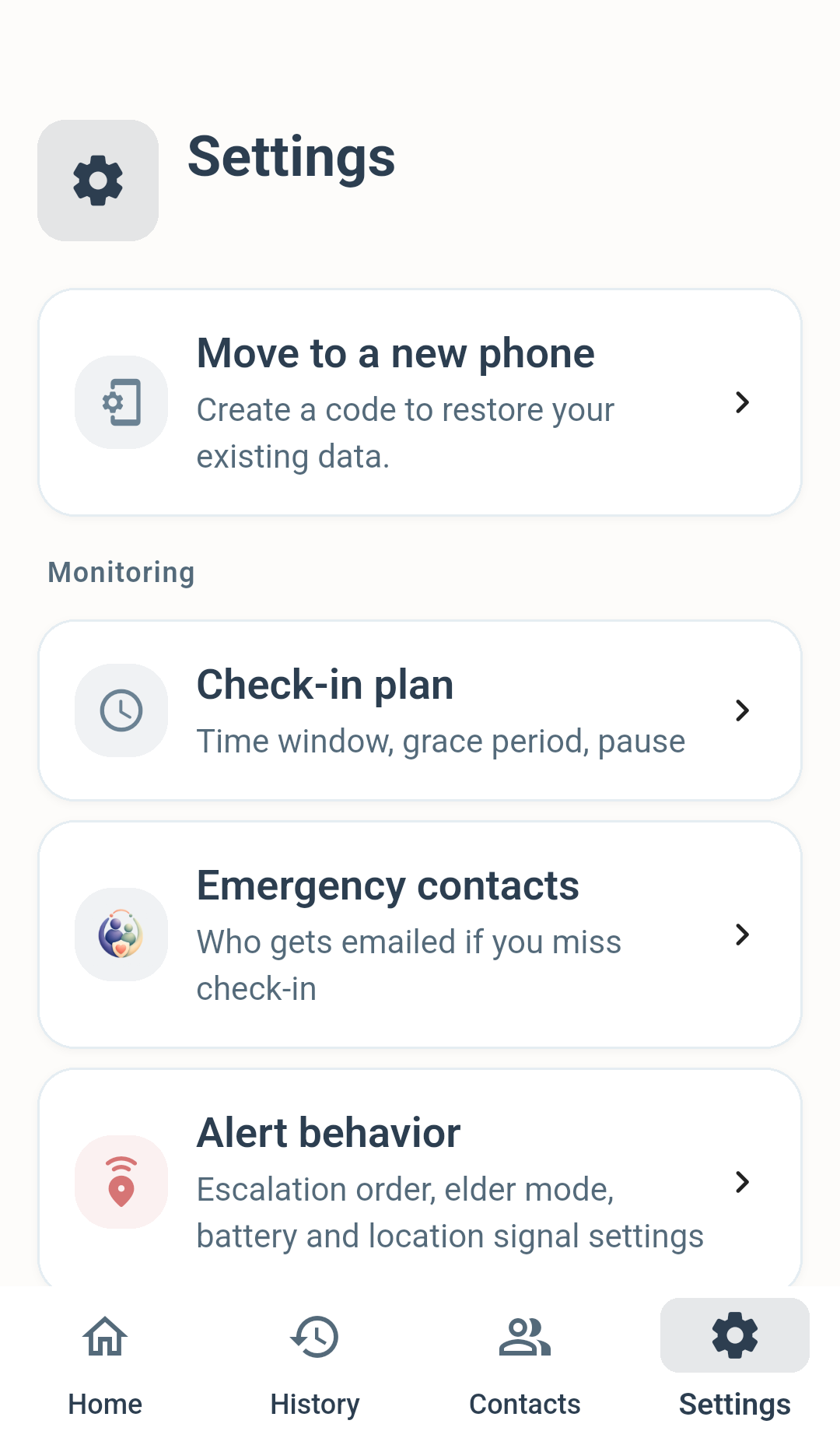
Go to Settings, then tap Move to a new phone. In the first screenshot, callout 1 marks this card.
2. Create your transfer code
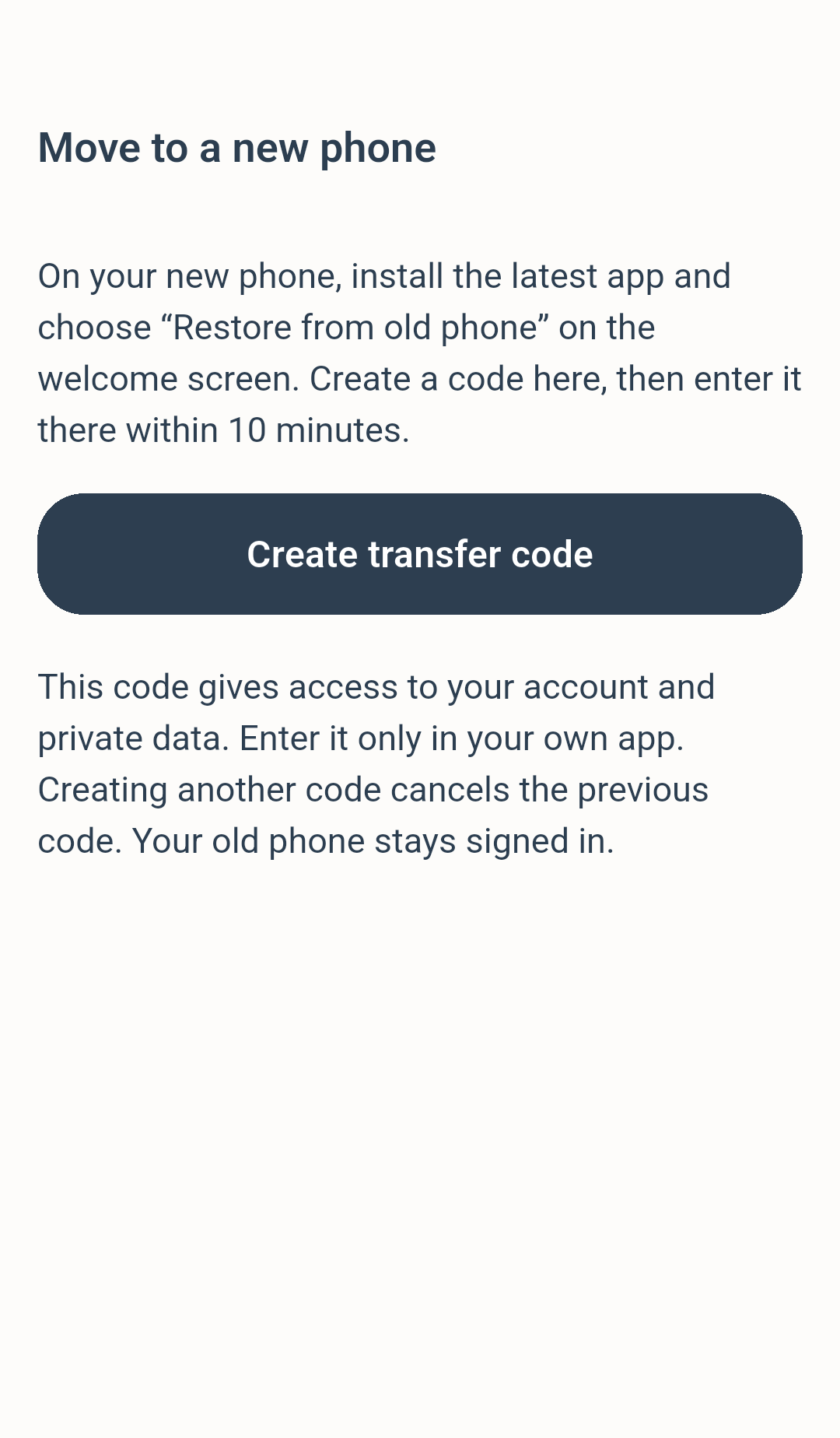
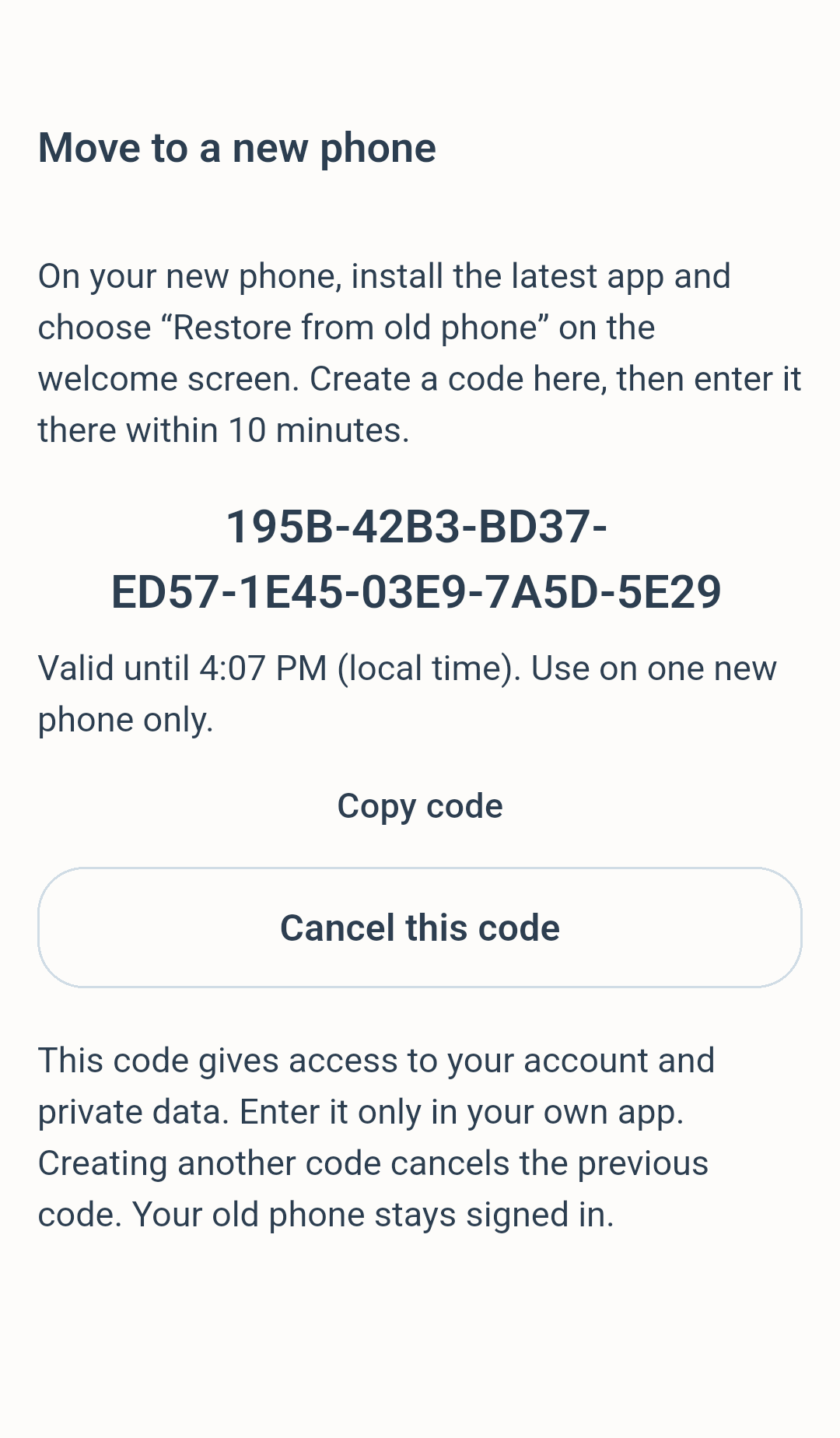
Tap Create transfer code on the old phone. The app displays a code and its expiry time. Callout 2 shows the create button; callout 3 marks the code and its expiry information.
The code is valid for 10 minutes and can be used to restore one new-phone account. Keep it private and enter it only in your own Im Alive app. You can use Copy code to copy it, or carefully type it on the other phone. Do not post a screenshot of your own code or send it to strangers.
Creating another code cancels the previous one. Cancel this code invalidates the current code. The sample code pictured in this guide has already been revoked and will not work.
3. Choose Restore on the new phone
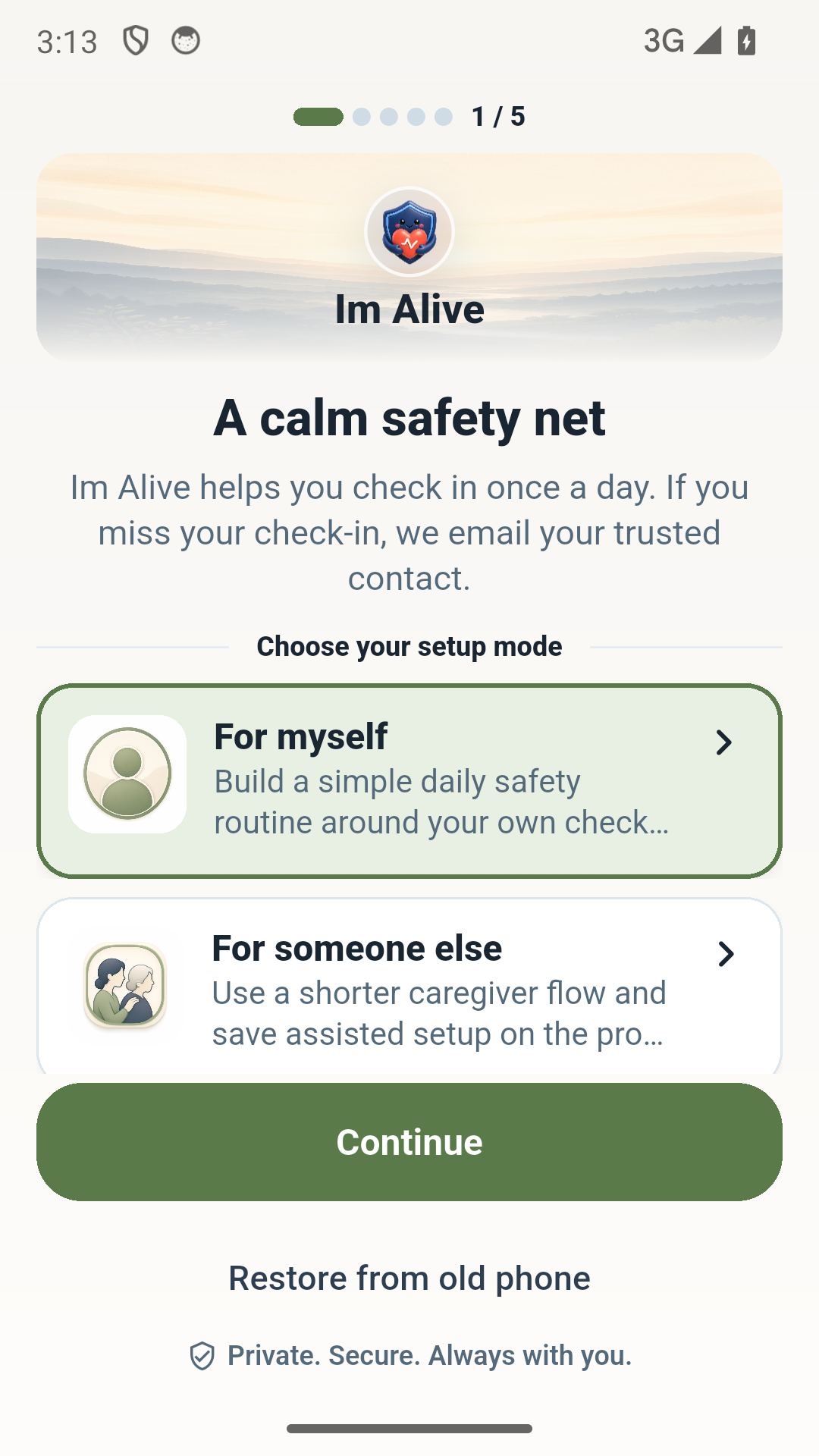
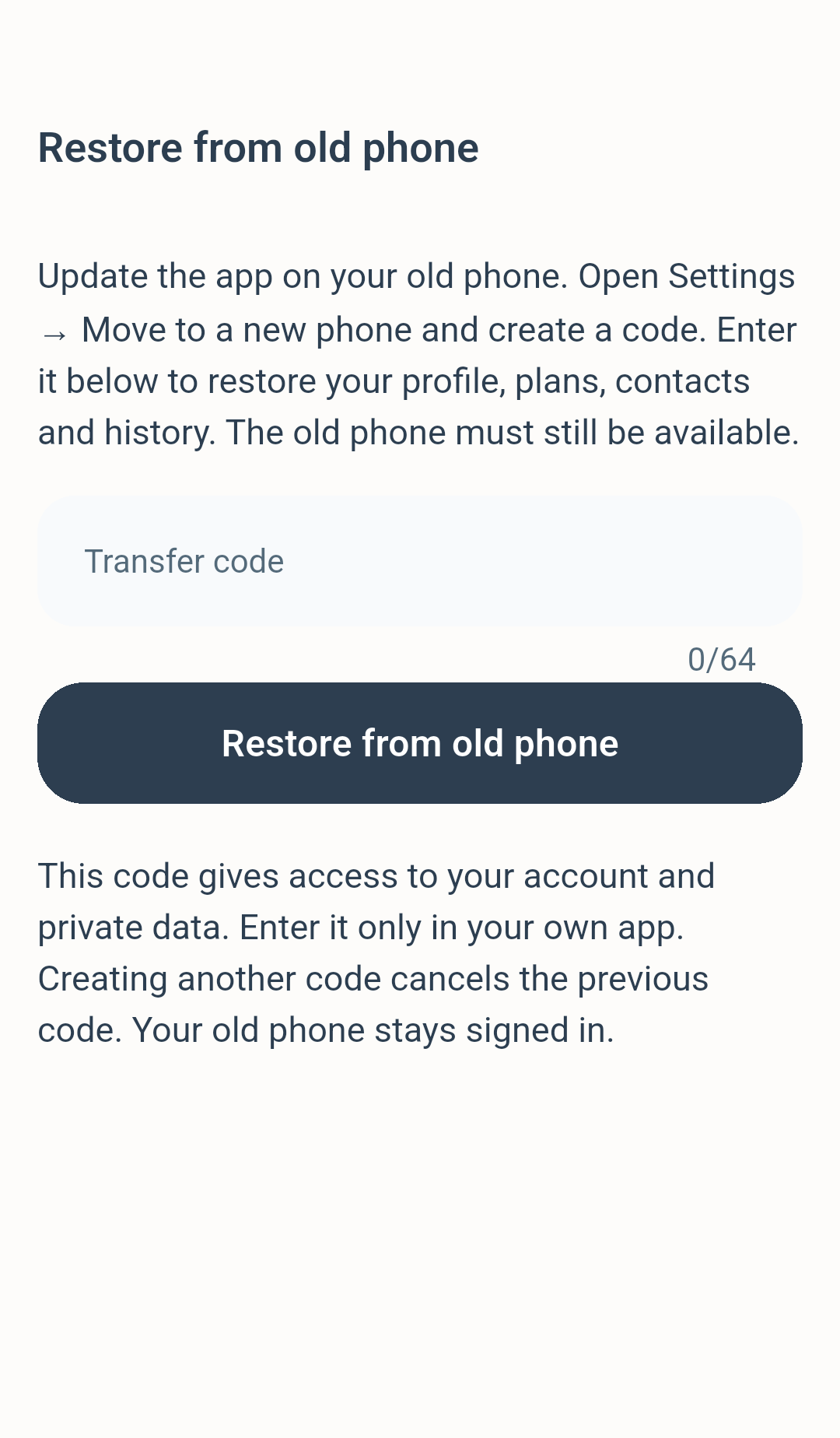
Install or update Im Alive on the new phone. On the welcome screen, tap Restore from old phone, below the main Continue button. Callout 4 points to this link.
Choose this before completing a new setup. You do not need to create a second plan or re-enter your contacts.
4. Enter the code
Enter the full code from your old phone into Transfer code, then tap Restore from old phone. Callout 5 marks the input and restore action. Keep both phones online while the request completes.
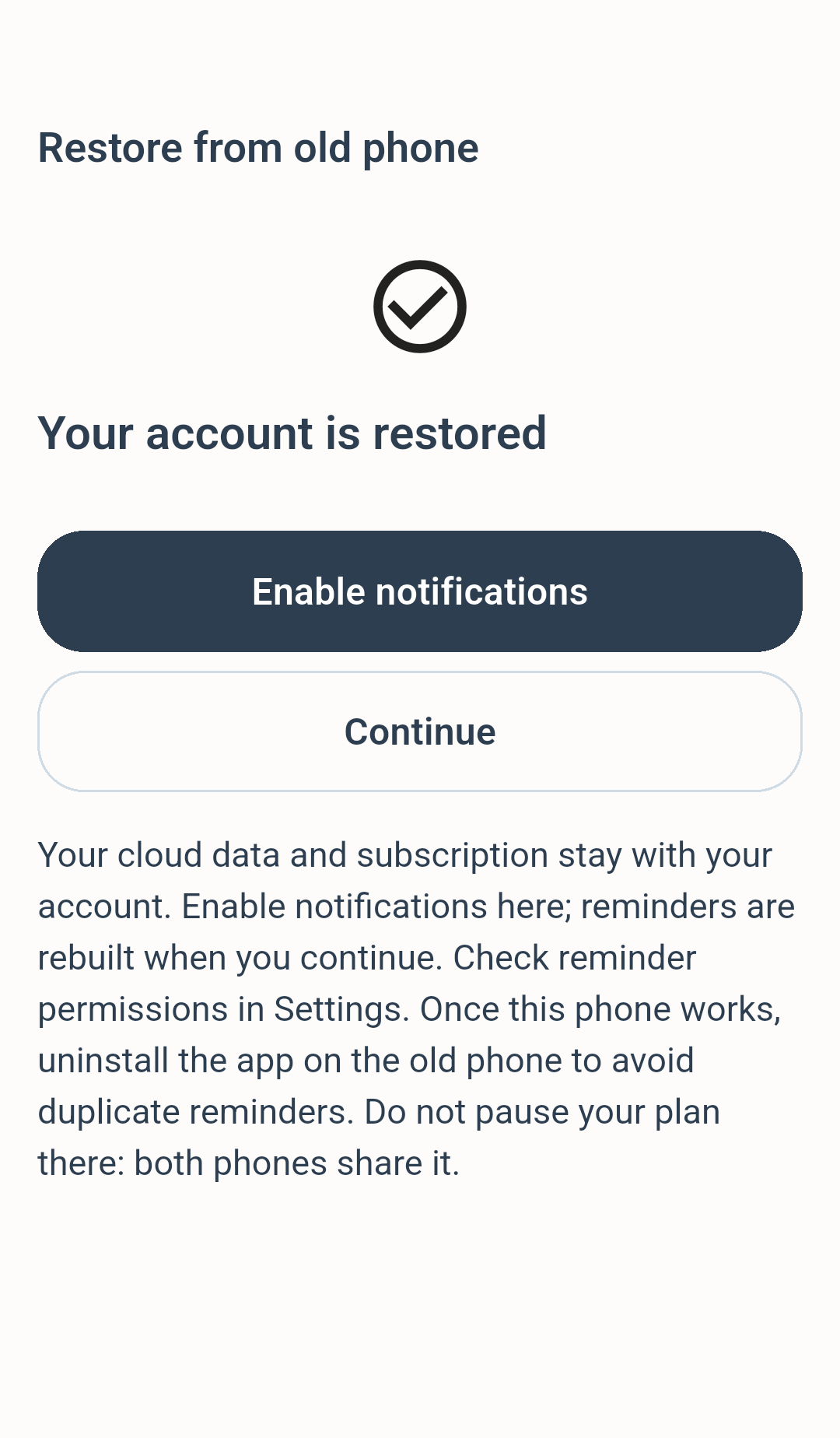
When you see Your account is restored, the new phone has reconnected to your existing account. A slow connection can take a little longer; avoid repeatedly pressing Restore or creating several codes at once.
5. Enable reminders and check your data
On the success screen, tap Enable notifications and allow the system permission. Then tap Continue. Callout 6 marks these actions. The app rebuilds local reminders when you continue.
Before putting away the old phone, check the new phone:
- Your check-in plan, next due time, time zone and grace period are correct.
- Your emergency contacts and history are present.
- Your care information and saved last letter are present, if you use them.
- Premium status is correct, if you have a subscription.
- Notification, reminder and battery settings allow the app to run reliably.
If you declined notification permission, your account is still restored. Enable notifications later in Android Settings and review the app's reminder settings. Device manufacturers may also require battery or background-run permissions.
6. Finish on the old phone
Your old phone stays signed in after the transfer. Once the new phone is working and your data has been checked, uninstall Im Alive from the old phone to avoid duplicate reminders.
Do not pause the plan or delete the account on the old phone just to silence it. Both phones refer to the same account and plan.
If something does not work
I cannot find Move to a new phone or Restore from old phone. Check that both installations are version 1.0.21 or later. If the update is not yet available in Google Play, keep the old installation and wait for the rollout.
The code is invalid or expired. On the old phone, tap Cancel this code, then Create transfer code, and enter the complete new code within 10 minutes. An older code stops working after a replacement is created or the code is cancelled. A code already used by another new-phone account cannot be reused for a different account.
The new phone already has a plan or contacts. This version does not merge accounts. Use Restore before completing new setup. If you already have data on the new phone, contact support before deleting or resetting anything.
My connection failed. Keep the old app installed, reconnect to the internet and try again. If the code has expired, create a fresh one. If you are temporarily rate-limited, wait before retrying.
My subscription is not showing. Check that your data was restored to the expected account. If needed, use the app's Restore purchases option with the same Google Play account used for the purchase. Do not buy a second subscription just to move phones. Contact support if the status is still incorrect.
I no longer have access to the old phone. This transfer flow requires the old phone's signed-in session. An emergency contact's email address is not a login method. Contact app support for guidance; recovery through this transfer flow cannot be promised without access to the old phone.
Get Im Alive for Android
New to Im Alive? Download the app from its official Google Play listing. Already using it? Open the same listing to check for updates.
Screenshots show Im Alive 1.0.21 running on Android, with a demonstration account. The transfer screens were captured during a successful real-service restoration; the sample code was revoked and the test accounts removed. Numbered outlines are tutorial annotations added around the original screenshots. Labels may be translated according to your app language.
Comments
0 public responses
All visitors can read comments. Sign in to join the discussion.
Log in to comment